Plugin instructions
Download Edit Cafe
Download the Edit Cafe .ccx file and open it, then choose Install in the Creative Cloud desktop app.
Open Edit Cafe
In Photoshop, open an image, then go to Plugins → Edit Cafe.
Sign in
Enter your email and choose Send code. Enter the 6-digit code from your inbox, then choose Verify.
Edit your image
Pick an edit mode — Template, Match, or Prompt — set Resolution and Quality, then choose Apply Edit (it shows the credit cost). Keep Photoshop and the document open; your edit arrives as a new layer above the active one.
Update instructions
Use the Creative Cloud desktop app to install the newest version of Edit Cafe.
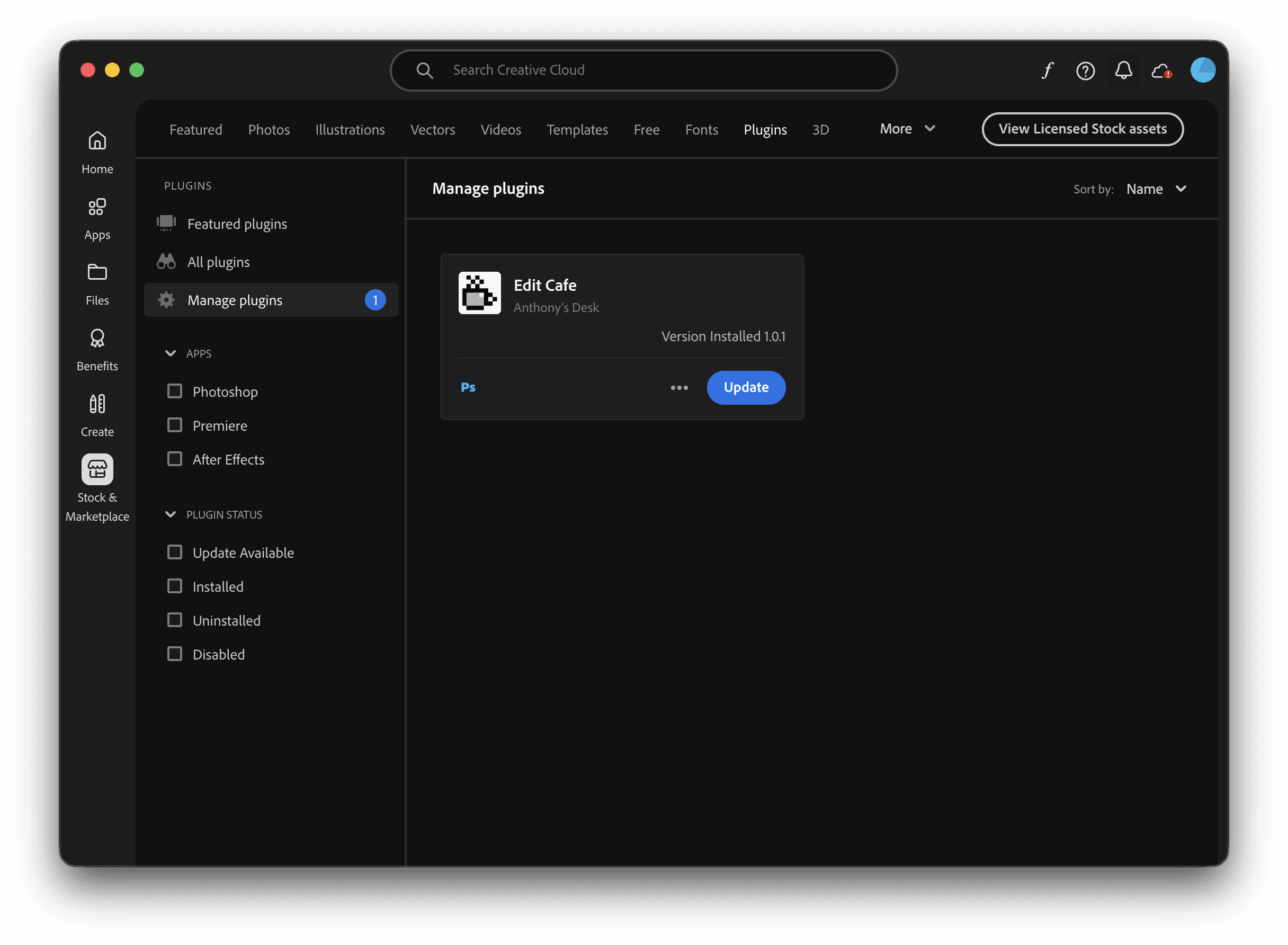
Open Creative Cloud
Open the Creative Cloud desktop app on your computer.
Find your plugins
Choose Stock & Marketplace on the left, choose Plugins at the top, then choose Manage plugins.
Update Edit Cafe
Find Edit Cafe and choose the blue Update button. Creative Cloud will install the latest version for you.
Open Edit Cafe
When the update finishes, open Photoshop and go to Plugins → Edit Cafe.